Creating a persona on Janitor AI is how you tell the model who you are playing. On the website, open your account or profile menu, go to My Personas, use the control that adds a new persona, enter a short adult description, save it, then choose that entry on a character page before you start a chat. Button labels can vary, so look for the create or add control rather than hunting for one exact word.
The persona describes the person you play. The bot's definition describes the AI character. This guide is for a signed-in adult using the website. For a broader look at the platform, see our Janitor AI review.
Create a Persona in My Personas
These steps follow Janitor's current web documentation. Menu placement on a native app may differ, so treat this as a web-first route.
- Open My Personas from the account or profile menu. Official product notes moved main-persona editing here from profile Settings, so start on this page rather than looking only in Settings.
- Use the control that creates a new persona. Older help text called this +Add New; the visible label may now be different.
- Give the persona a fictional name and a compact description of stable facts and appearance. Add an avatar only if the form offers one and you want it. Do not upload someone else's identifying photo.
- If a pronoun field is present, fill it so it matches the description. Official notes added pronoun support; do not assume a fixed list of options.
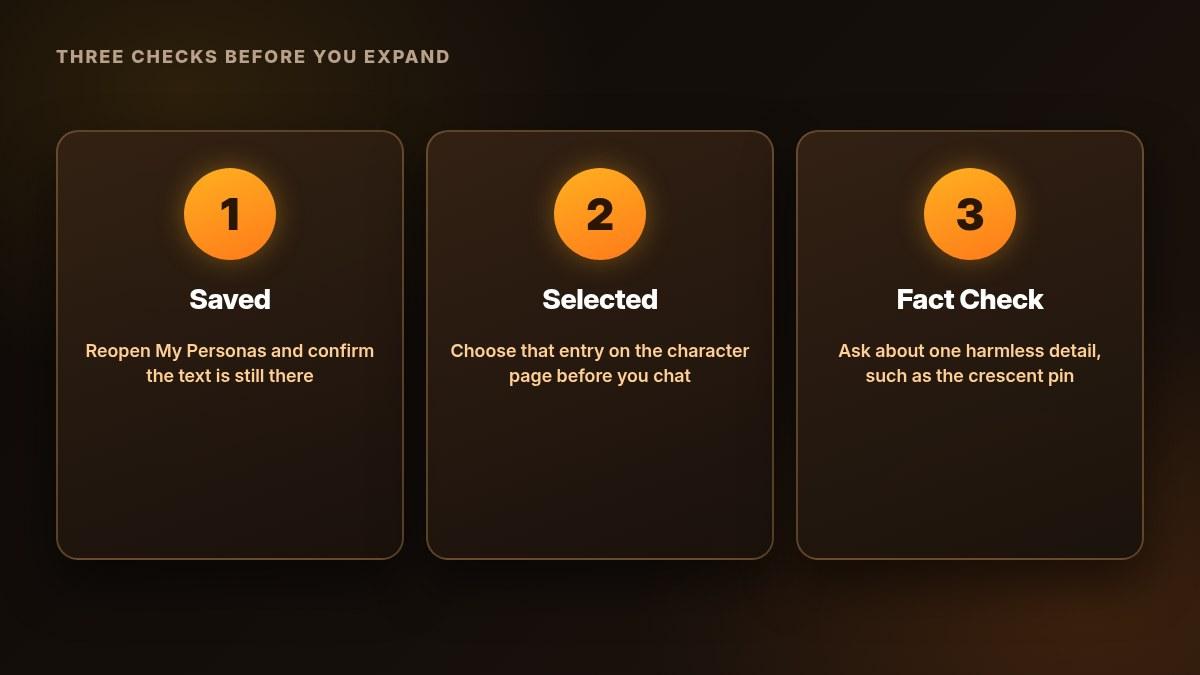
- Save or create the persona, then reopen it and confirm that the text you entered is still there.
Keep a private copy of the description in case a save does not stick on the first try.
What to Write in a Janitor AI Persona
Janitor's writing guidance is to stay around 500 tokens or less, favour appearance and other stable facts, and skip elaborate personality or backstory. Treat that length as writing advice, not a confirmed form limit. Optional XML-style tags, such as a user_persona wrapper, are presented as a way to mark the text as a description of you, not as syntax that guarantees compliance.
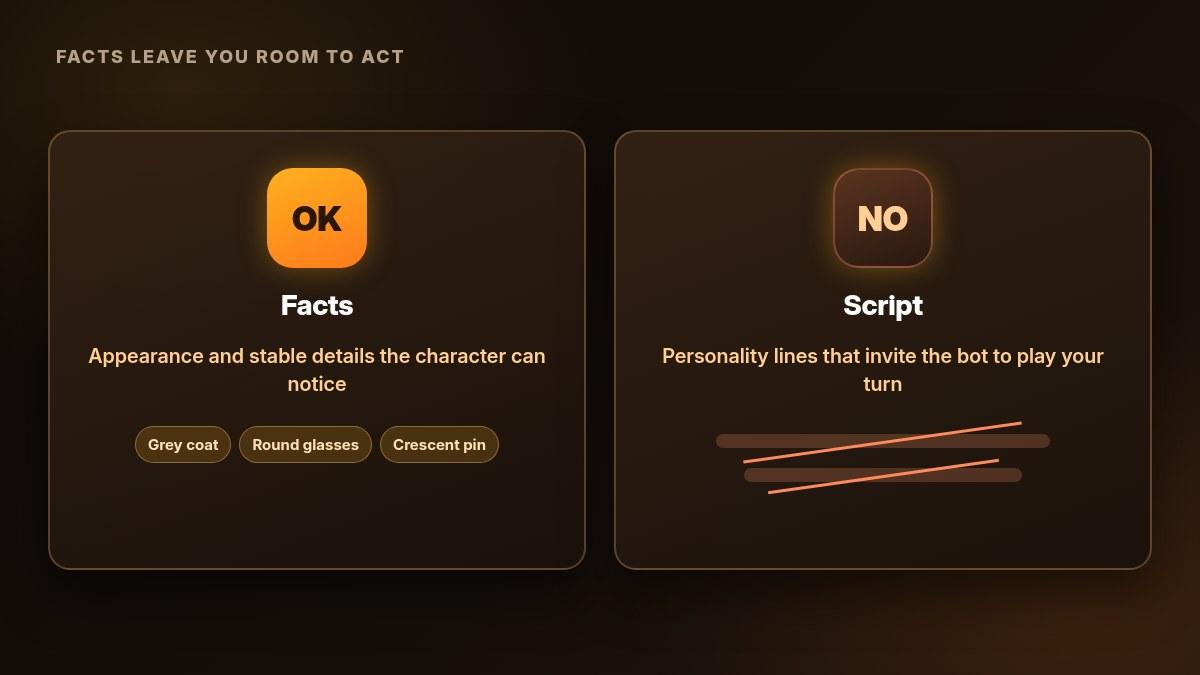
Write facts the character can see or know, and leave the actions to you in chat. "Tarin always smiles, agrees and speaks softly" is a script for how you should be played. A coat, a pin or a pair of glasses is a fact the reply can use without taking your turn.
This original example is only a template, not a recorded chat result. All details are fictional, and the person described is an adult:
Example Persona Text |
|---|
<user_persona> Tarin Vale is a fictional adult, age 32, using they/them pronouns. They are average height, with short black hair, round glasses and a grey travel coat. A small crescent-shaped pin is attached to the coat collar. </user_persona> |
The coat and pin give the model something concrete to notice, without telling it what Tarin will say next. If a later reply twists one of those facts, tighten the wording rather than adding a longer backstory.
Persona text also uses part of the same context budget as the conversation, so a short entry leaves more room for the scene. For how context and saved facts differ across apps, see how AI companion memory works.
Edit Your Main or Default Persona
To change the persona you treat as your main or default entry, open My Personas on the website. Official product notes moved that editing off the profile Settings page.
Choose the intended entry, edit the name or description, and save. Reopen it to confirm the new text persisted. How a default entry is marked can vary, so check the control on your screen before assuming a specific toggle will change it.
Editing a saved persona updates the description available for later chats. It does not rewrite the bot or automatically change messages already in a conversation.
Select the Right Persona for a New Chat
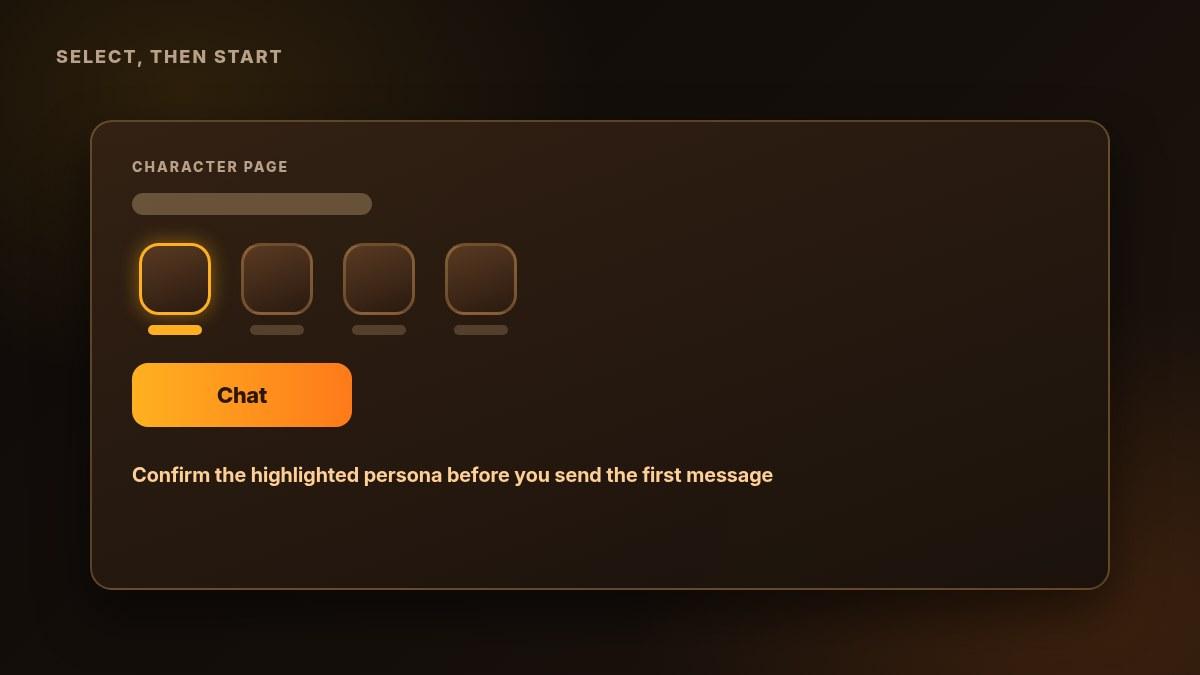
On a character page, official help describes a persona or avatar selector above the chat controls. Open that selector, choose the entry you just saved, check the name or image, then start the chat.
If you use Continue latest chat and an older conversation appears, official product notes say that control now follows the persona you have selected. Check the selected entry before you assume the history is missing. On any layout, confirm the selected entry before you send the first message.
If the Saved Persona Seems Wrong or Is Ignored
Use this table for a short setup check. Persona wording is only one influence on a reply, so these steps diagnose the saved entry and the selection, not every model or bot-card issue.
Symptom | Check | Next Action |
|---|---|---|
The text did not persist | Reopen the entry in My Personas | Keep a private copy of the text, save again, and reopen to confirm |
The first reply uses the wrong name | Is the intended persona selected, and does the opening chat already state someone else? | Reselect the entry and compare in a fresh short private chat if useful |
The bot acts or speaks for you | Does the description include habits, tone or a script of your behaviour? | Remove those lines and leave appearance and stable facts |
One fact is repeatedly misread | Is the wording ambiguous? | Simplify that one detail and look for it in a later reply |
You cannot find the same menus | Are you on a native app rather than the website? | Follow the web route in this guide; app menus may not match |
To look for a factual connection, ask a neutral question that depends on an innocuous detail, such as the crescent pin. Look for that fact in the reply. One response is something to observe, not proof that the persona will always be used.
Limits and a Brief Privacy Caution
Janitor's official changelog says the former 100-persona limit was removed on the website, so you can create more than 100 personas there. That note is specific to web. Do not assume the same cap, or the absence of a cap, on every app. You do not need a paid plan to follow this workflow, and this guide does not add pricing.
Write fictional details. Do not put a real address, workplace or other sensitive personal data in the persona. Treat the text as something you are willing to have appear in a chat. For a broader checklist, see AI companion privacy.
Frequently Asked Questions
What Is the Difference Between a Janitor AI Persona and a Bot?
The persona describes the person you play. The bot's definition describes the AI character, including its personality, scenario and opening message. Change the persona to be recognised as a different player character; edit the bot to change the AI character itself.
Where Do I Create a Persona on Janitor AI Now?
On the website, open the account or profile menu, go to My Personas, and use the control that adds a new persona. Official product notes moved main-persona editing here from profile Settings.
How Do I Edit My Main or Default Persona?
Open My Personas, choose that entry, edit the text and save. Reopen it to confirm the change stuck. Check the on-screen control before assuming how an entry is marked as the default.
How Do I Select a Different Persona Before Starting a Chat?
On the character page, open the persona or avatar selector above the chat controls, choose the entry you want, confirm it, then start the chat. If Continue latest chat opens an older thread, check that the selected persona matches the chat you meant to resume.
What Should I Write in a Janitor AI Persona?
Write a short description of stable facts and appearance, such as age range, build, hair, clothing and one distinctive detail. Avoid personality traits, backstory and instructions for how you should behave. Fictional details are safer than real personal information.
Is 500 Tokens a Hard Persona Limit?
No. Janitor's writing guide presents around 500 tokens or less as a practical length, not a confirmed hard cap in the form. Shorter factual notes are easier to check and leave more room in the chat context.
Does Janitor AI Still Limit Me to 100 Personas?
On the website, official product notes say that 100-persona cap was removed. Older help text can still mention the old limit. Do not assume the same rule applies in every native app.
Why Does the Bot Use the Wrong Persona or Speak for Me?
First confirm that the intended persona is selected and that the saved text is the text you expect. If the bot narrates your actions, remove behavioural scripts from the description. These checks fix setup problems; they do not guarantee that every model or bot card will follow the persona.
Closing Checklist
Before you add more detail, confirm: short description → saved in My Personas → correct persona selected → one harmless fact checked. Start with one compact entry and expand only after that setup is clear. For platform questions beyond this workflow, see our Janitor AI review. More setup help lives under Guides and the AI companion apps hub.