Learning how to use a SpicyChat Lorebook starts with one distinction: saving a book does not attach it to a character. Create the book, add a short entry with specific keywords, save it, then attach it through your character's editor. A Lorebook holds world information that enters chat context when its keywords appear. This guide follows official documentation and uses fictional examples to walk through a private setup for a character you own. It is based on official pages and user reports, and it is written for adults 18+. For whether the platform itself is worth paying for, see our SpicyChat review.
Quick Setup
The documented route is Create → Lorebook → Add Entry → Save Lorebook, followed by Character Editor → Advanced → Lorebook → Attach Lorebook → choose your book → Save.
Start with one book and two entries. Check that a reply uses a fact from an entry before adding more lore. These instructions are for characters you can edit, not someone else's public bot.
What to Put in a SpicyChat Lorebook
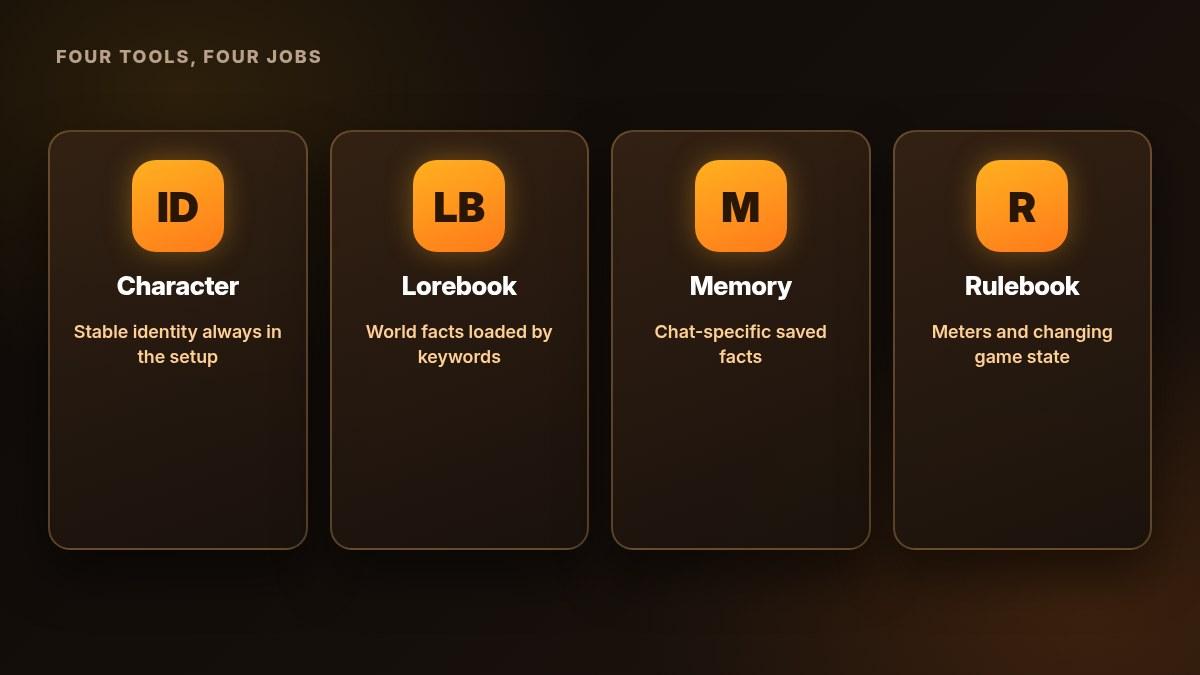
Use a Lorebook for information needed when a scene calls for it, rather than filling the character definition with every detail of the world. Memory Manager holds conversation-specific facts inside a chat. A Rulebook tracks changing meters and game state. For the broader distinction between context and saved facts, read how AI companion memory works.
Tool | Put This Here |
|---|---|
Character definition | Stable identity and essential personality |
Lorebook | Places, side characters, objects and world facts retrieved by keywords |
Memory Manager | Saved facts within a particular conversation |
Rulebook | Changing meters or game state, such as trust or coins |
A Lorebook is not unlimited memory, and adding a fact does not guarantee a model follows it. Documentation describes lore sharing a limited slice of context with the conversation and other material used for replies. Exact token budgets vary by tier and model, so treat “a limited shared budget” as the useful rule rather than a fixed per-plan lore table.
Create Your First Lorebook
Open the Editor
From the main menu, choose Create → Lorebook. Give the book a name you will recognise later, such as Ferry Town Notes, and a short description of its setting.
The documentation says the description helps identify the book but does not affect chat. Put facts the character needs in entry content, not only in the description. Choose Private for this first setup. Official pages disagree on how far Public Lorebooks have rolled out, so private creation is the reliable first path.
Add a Focused Entry
Click Add Entry and fill in the three parts:
- Name: a label that makes the entry easy to identify.
- Keywords: words or phrases that should load the entry. Type each keyword and press Enter to add it.
- Content: the information to include when a keyword matches.
Keep one topic in each entry. Two to five clear sentences are a useful starting point: who or what it describes, the important fact, and any relevant exception. Avoid a chapter-length history when the current scene only needs a crossing rule.
Save the Book
For a private book, use Save Lorebook. SpicyChat documents up to 5,000 entries per Lorebook and 2,000 characters per entry. These are storage limits, not targets for good writing. Characters are not the same as words or tokens.
Keep a separate copy of your entry text while building. Then confirm that the book appears under My Creations → Lorebooks. Next, attach it to the character; a saved book alone does not complete the setup.
Use These Fictional Lorebook Examples
The following setting, entries and prompts are original illustrative examples. They are writing templates and proposed checks, not recorded model outputs. All travellers in this setting are adults.
Entry Name | Keywords to Add Separately | Content |
|---|---|---|
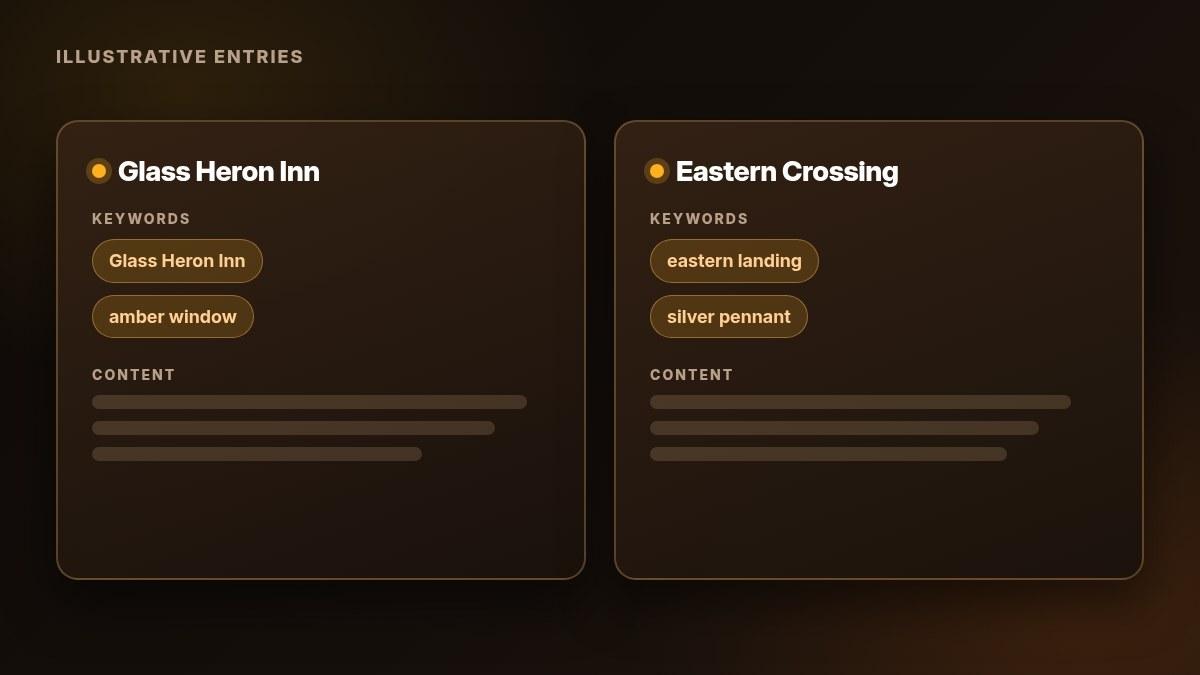
Glass Heron Inn | Glass Heron Inn; amber window | The Glass Heron Inn stands beside the eastern landing. An amber window signals that its common room is open. The innkeeper lends river maps from a drawer beneath the desk. |
Eastern Crossing | eastern landing; silver pennant | A silver pennant at the eastern landing means the ferry is closed. Travellers must cross by the old stone bridge while the pennant is raised. The bridge remains open after sunset. |
Enter the keywords individually, pressing Enter after each one. The semicolons in this table separate examples; they are not an instruction to paste one combined keyword.
Why these triggers work as a design choice: silver pennant points to one specific rule. A broad word such as journey could appear in unrelated scenes and load information you do not need. Likewise, amber window is a useful alternative to repeating the inn's full name.
Keep each entry understandable by itself. The crossing note names the landing and the bridge explicitly, rather than saying “it is closed” and “go there.” Clear names reduce ambiguity when the entry is read alongside other text.
Attach the Lorebook to Your Character
Follow the Character Editor route described in the documentation:
- Open the Character Editor for a character you control.
- Scroll to Advanced.
- Under Lorebook, click Attach Lorebook.
- Choose My Lorebooks from the selection dropdown.
- Pick your saved book and hit Save.
Only one Lorebook can be attached to a character at a time. A replacement takes the existing book's place; it does not add a second layer of books.
Both official Lorebook sources support using books on your own private and public characters. That does not give you editing access to other creators' bots. Character visibility and Lorebook visibility are separate settings.
According to the documentation, attachment connects the Lorebook to all that character's chats. Later changes to the book apply to existing chats without reattaching it. Treat this as a change to the information available for replies, not a way to rewrite messages already in the conversation. Optional routes from a Lorebook Profile, Favorites or Discover may appear in your editor; availability and labels can differ, so treat Character Editor → Advanced as the core path for this tutorial.
Check Keywords and Confirm the Setup
Understand the Matching Window
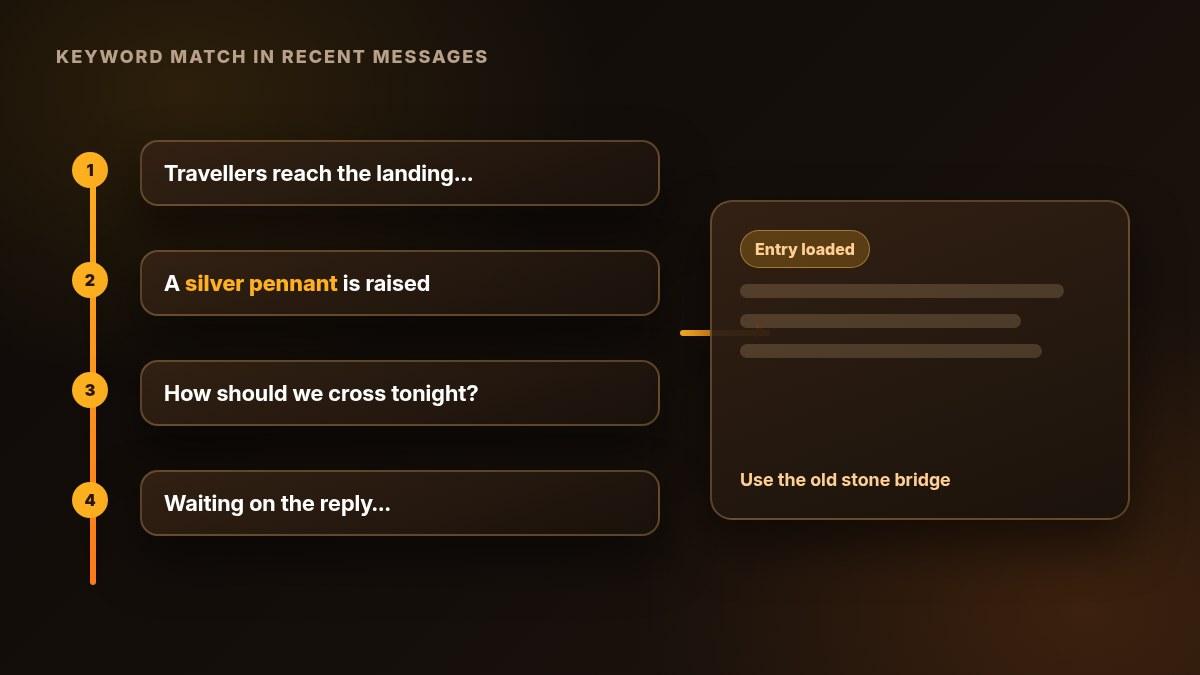
SpicyChat describes checking the last four messages, including both user and character messages. This means four messages, not four complete exchanges. An activated entry stays active for about two turns, described as the user message and the AI's next one; recurring keywords keep it active longer.
Multi-word keywords require the full phrase together. For silver pennant, use those words together in your check rather than separating them across a sentence.
The docs also describe prefix and suffix wildcards using *. For example, a proposed keyword river* would cover a word beginning with river, while *gate targets a word ending in gate. Start with ordinary exact phrases before widening your triggers.
Watch Shared Triggers and Entry Chains
If two entries share a matching keyword, both are added. Reusing a broad trigger across many entries can therefore load more lore than intended.
Entries do not trigger other entries. If the inn's content mentions the eastern landing, that text alone will not activate the crossing entry. Only actual chat messages are checked for keyword matches. Include the relevant trigger in the conversation when you want to check that second note.
Try a Fact-Dependent Prompt
For the fictional crossing entry, try:
Proposed check: "A silver pennant is raised at the eastern landing. How should we cross the river tonight?"
The note points to the old stone bridge. Look for that factual connection in the reply, rather than asking whether the character “read the Lorebook.” A claim that it did is not evidence that it used the right entry.
For a second check, change one fictional detail, save the book, and repeat a short prompt that depends on it. Compare with a fresh short conversation to reduce interference from earlier scene facts. These are proposed checks, not guarantees of a particular reply.
Fix a Lorebook That Does Not Seem to Work
Symptom | Check | Next Action |
|---|---|---|
Nothing changes | Was the book saved and attached to the correct character? | Reopen the editor and verify the attachment. |
Unrelated facts appear | Do several entries share a broad keyword? | Give one entry a distinctive phrase and check it alone. |
A note seems ignored | Is its trigger in recent chat messages? Is too much lore competing? | Use the exact phrase, then shorten competing notes. |
An old fact persists | Does earlier conversation text still state it? | Correct the scene and compare with a fresh short check. |
The book will not save | Is there an error or a documented capacity issue? | Keep your text, inspect the error, check My Creations and update the browser. |
An import fails | Does the file fit the documented format? | Preserve the original file and build a small manual entry instead. |
Lore shares a limited context budget with the conversation and other material used for replies. A large saved book does not mean every entry loads at once. Short, specific notes make troubleshooting easier because there are fewer possible causes to inspect.
Change one thing at a time. If you rewrite the content, replace every keyword and switch characters together, a different reply will not tell you which change mattered. Do not invent a JSON schema or overwrite existing material blindly when import fails.
Importing and Visibility
SpicyChat's Lorebook documentation describes importing .JSON files into the editor. It does not establish that every file exported by another app will work unchanged. Keep your original file, check the entries that appear, and use manual creation for this first setup rather than assuming settings transfer perfectly.
Current official pages do not fully agree on Public Lorebooks. Product documentation describes Public visibility, moderation, Explore and public attachment routes. A support article still describes Lorebooks as private with Public Lorebooks “coming soon”. Because signed-in UI can differ by account and update, treat public browsing as an optional extra and keep private creation as the main workflow in this guide.
For visibility, keep personal information out of both entry content and the book's name. The documentation says a private Lorebook's name can still appear on a public chatbot profile, although other users cannot open its entries there. A private name should therefore be descriptive, not identifying. That short warning sits alongside broader AI companion privacy habits.
Frequently Asked Questions
How Do I Attach a Lorebook to My SpicyChat Character?
Open Character Editor, scroll to Advanced, find Lorebook and click Attach Lorebook. Select your book from My Lorebooks and Save.
Can Lorebooks Work With Public Characters?
Yes, both official sources support attachment to your own public and private bots. You must control the character you edit; this is separate from sharing a Lorebook publicly.
Why Is My SpicyChat Lorebook Not Triggering?
Check the attachment first, then use a specific keyword in a recent message. Exact multi-word phrases must appear together, and entry content cannot activate another entry.
How Many Lorebooks Can One Character Use?
One at a time. Attaching a replacement does not stack books.
What Is the Entry Character Limit?
Both official Lorebook pages document up to 2,000 characters per entry and up to 5,000 entries per book. Keep notes shorter when the fact needs only a few sentences.
Is a Lorebook the Same as Memory Manager?
No. Lorebook entries load by keywords; Memory Manager holds editable facts within a conversation. Memory Manager's subscription requirement is not a requirement for following this Lorebook workflow.
Can I Import a Lorebook From JSON?
The documentation describes .JSON import. It does not promise universal compatibility with other apps or preservation of every setting. Keep the source file and inspect the imported entries.
Can Others Read My Private Lorebook?
The docs say other users cannot open its entries from a public chatbot profile, but its name remains visible there. Keep identifying details out of the name.
Closing Checklist
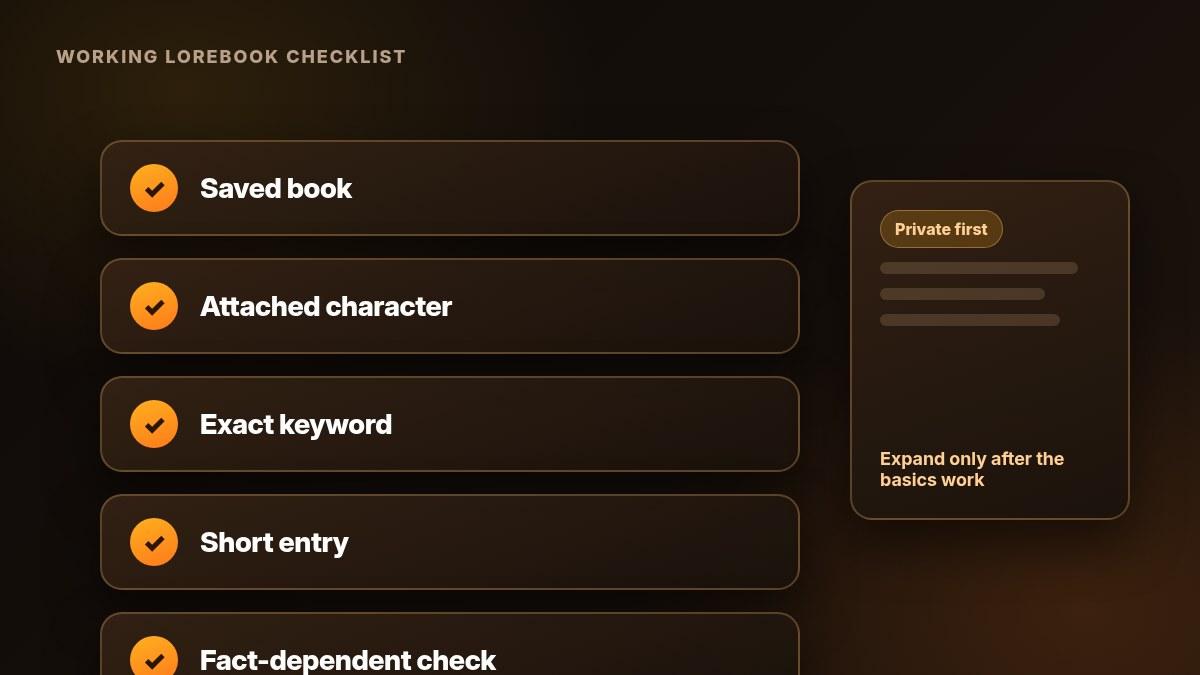
Before writing more lore, confirm: saved book → attached character → specific keyword → short entry → fact-dependent check. Start small, repair one issue at a time, and expand only after the basic setup is clear. For plan and platform questions beyond this workflow, use our SpicyChat review. For a two-app decision, the Janitor AI vs SpicyChat comparison is related reading. More setup help lives under Guides and the AI companion apps hub.